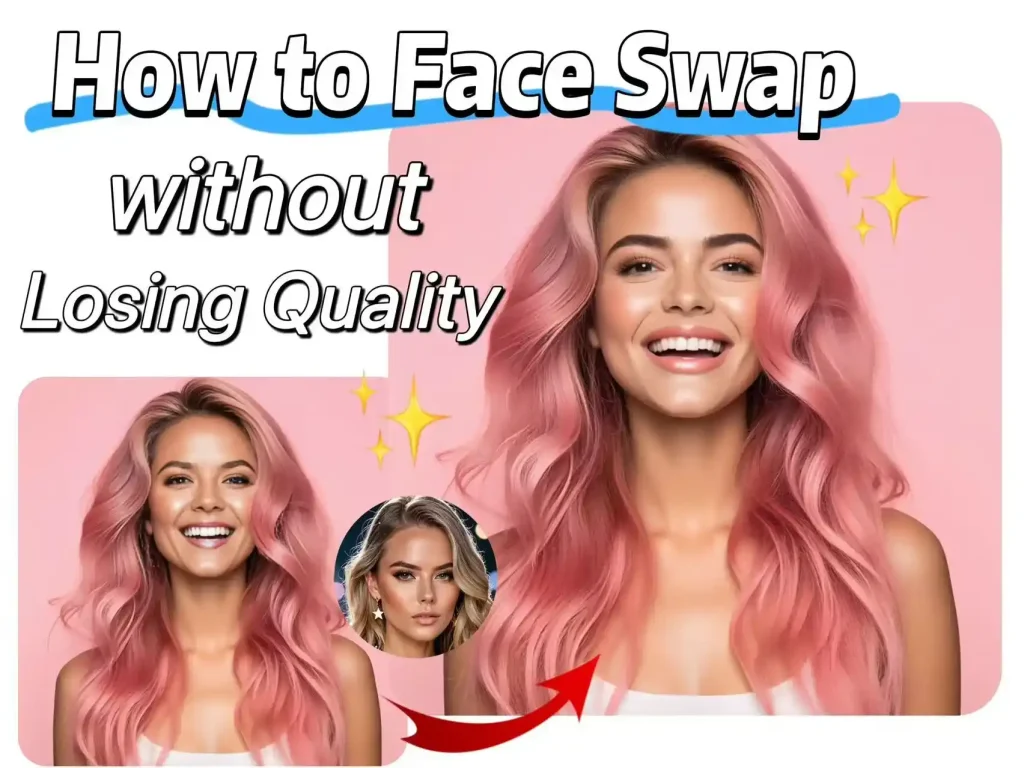
How to Swap Faces without Losing Quality for Free?
Quality loss after face swapping is a common challenge with many AI face swap tools. However, by following the right steps, you can significantly reduce this issue.
In this article, we’ll walk you through three essential stages: preparing your images, choosing the best tools, and enhancing your results—to ensure your face swaps maintain flawless, high-quality results every time.
Why Do Many Face Swap Tools Cause Quality Loss?
❌Issues with the uploaded images
Low resolution, compression artifacts, or inconsistent lighting and angles in your source photos can lead to blurry or unnatural face swap results.
❌Limitations of AI algorithms
Some face swap tools use less advanced AI models that struggle to preserve fine details and blend faces seamlessly.
Now, we’ll guide you step-by-step on how to tackle these two issues, ensuring you get the best face swap experience with no loss in quality.
Preparation Tips to boost the quality of your face swap
To boost the quality of your face swap, the quality of your source images plays a major role in the final result. Here are some key tips, take a moment to review your images and see how they stack up.
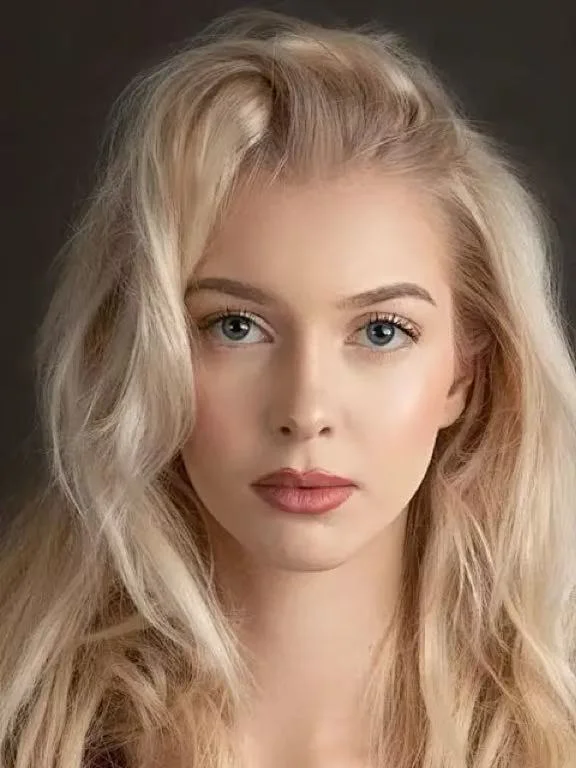
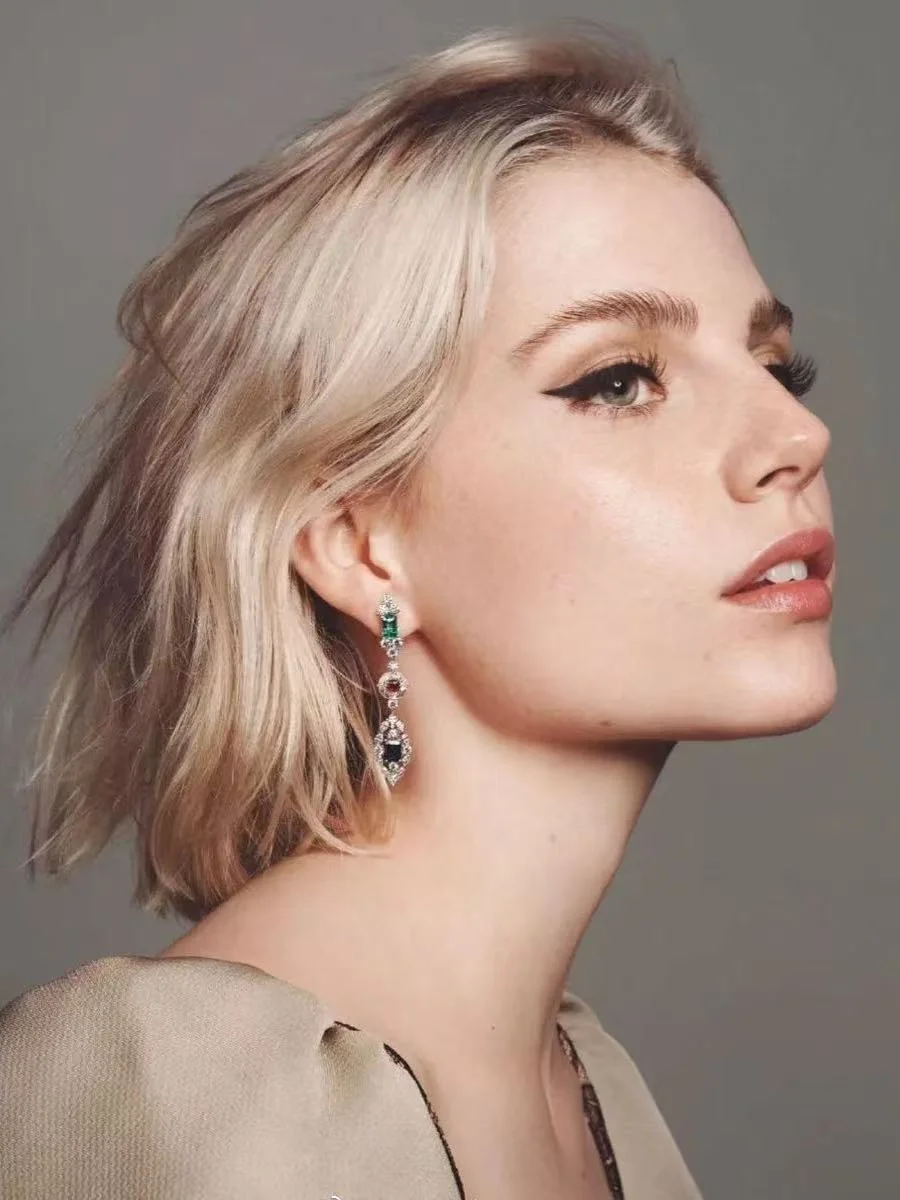
💡Choose high-resolution images or videos
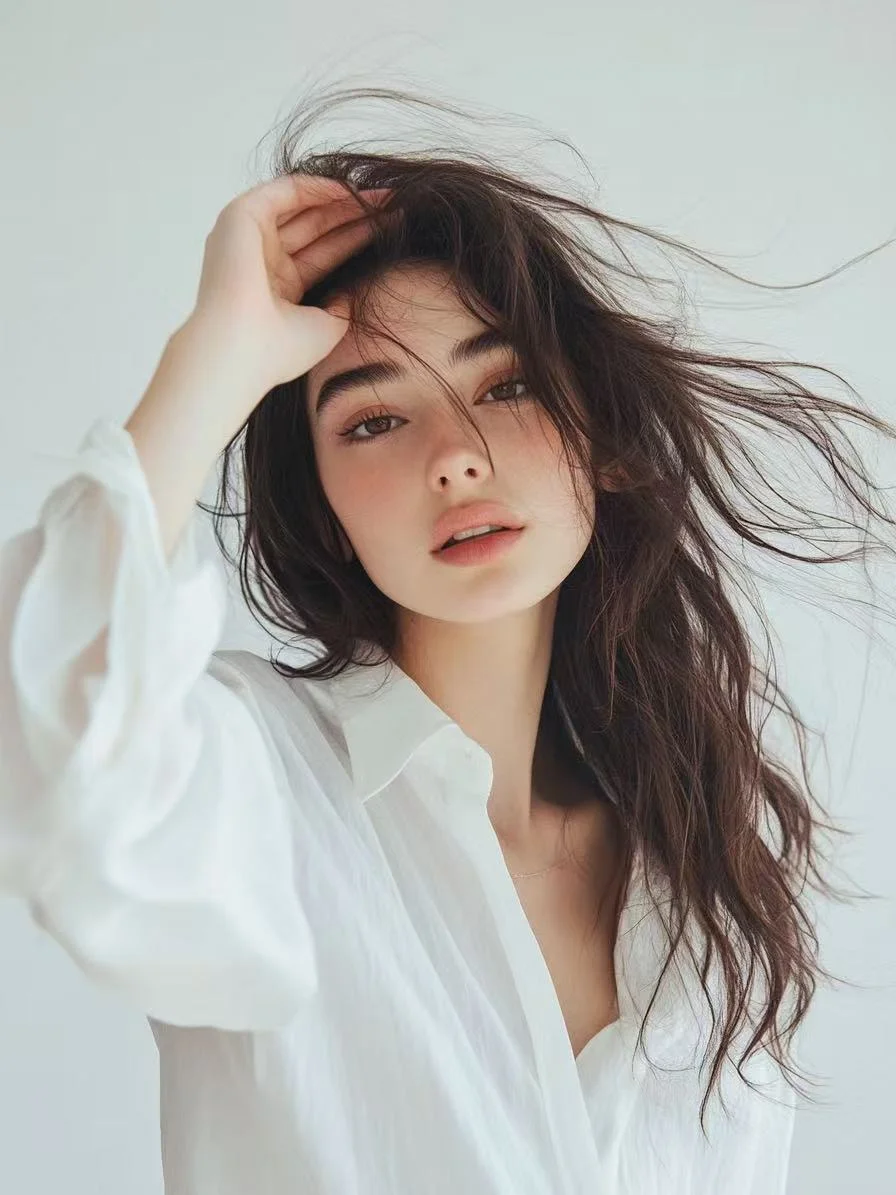
The higher the resolution of the image or video, the more natural the face swap will look.
✅High-resolution
❌Blurry
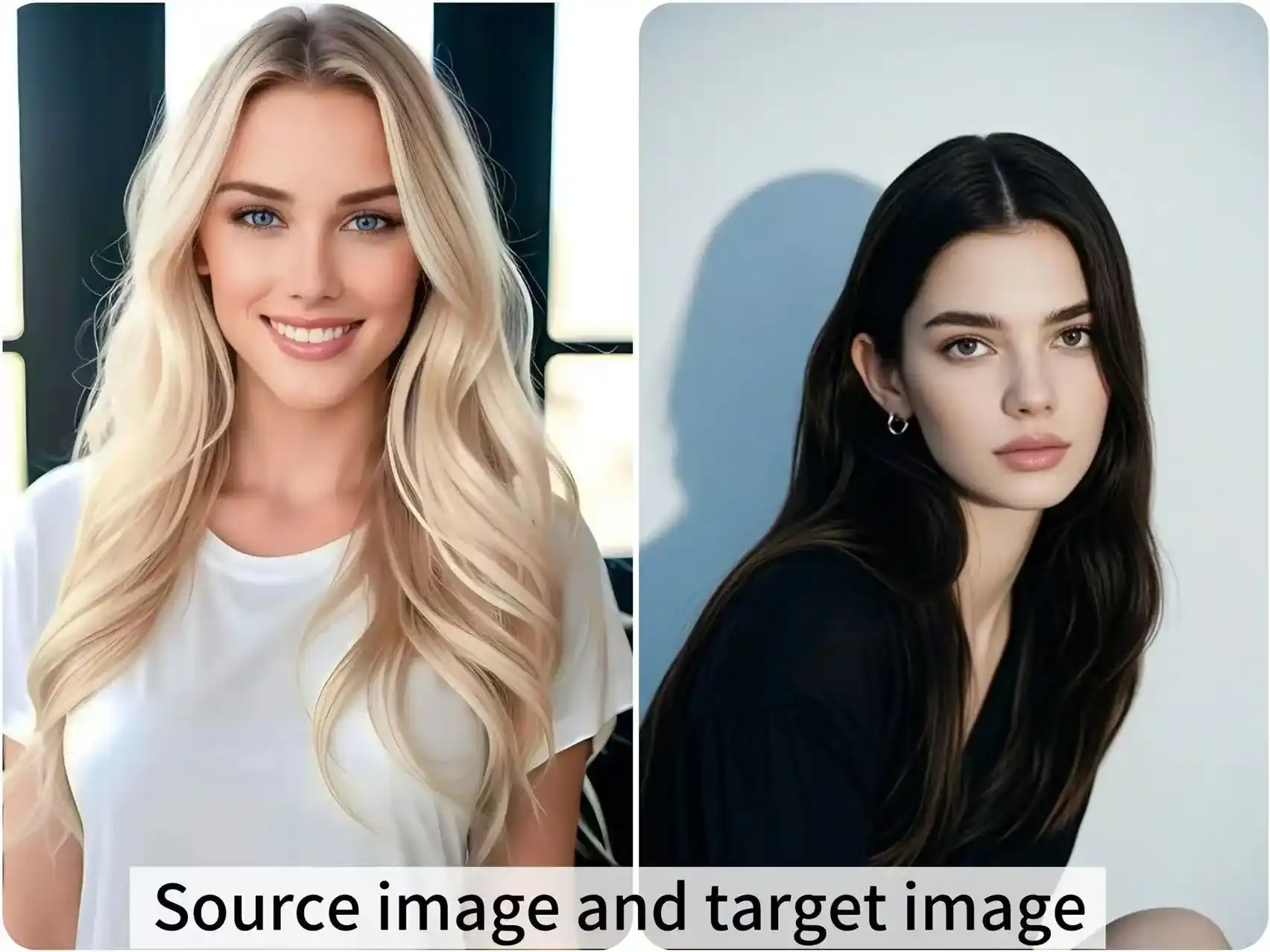
💡Ensure both faces have similar angles or perspectives
If the differences between the two faces are too great, the face swap result will look unnatural.
✅Reasonable angle
❌Unreasonable angle
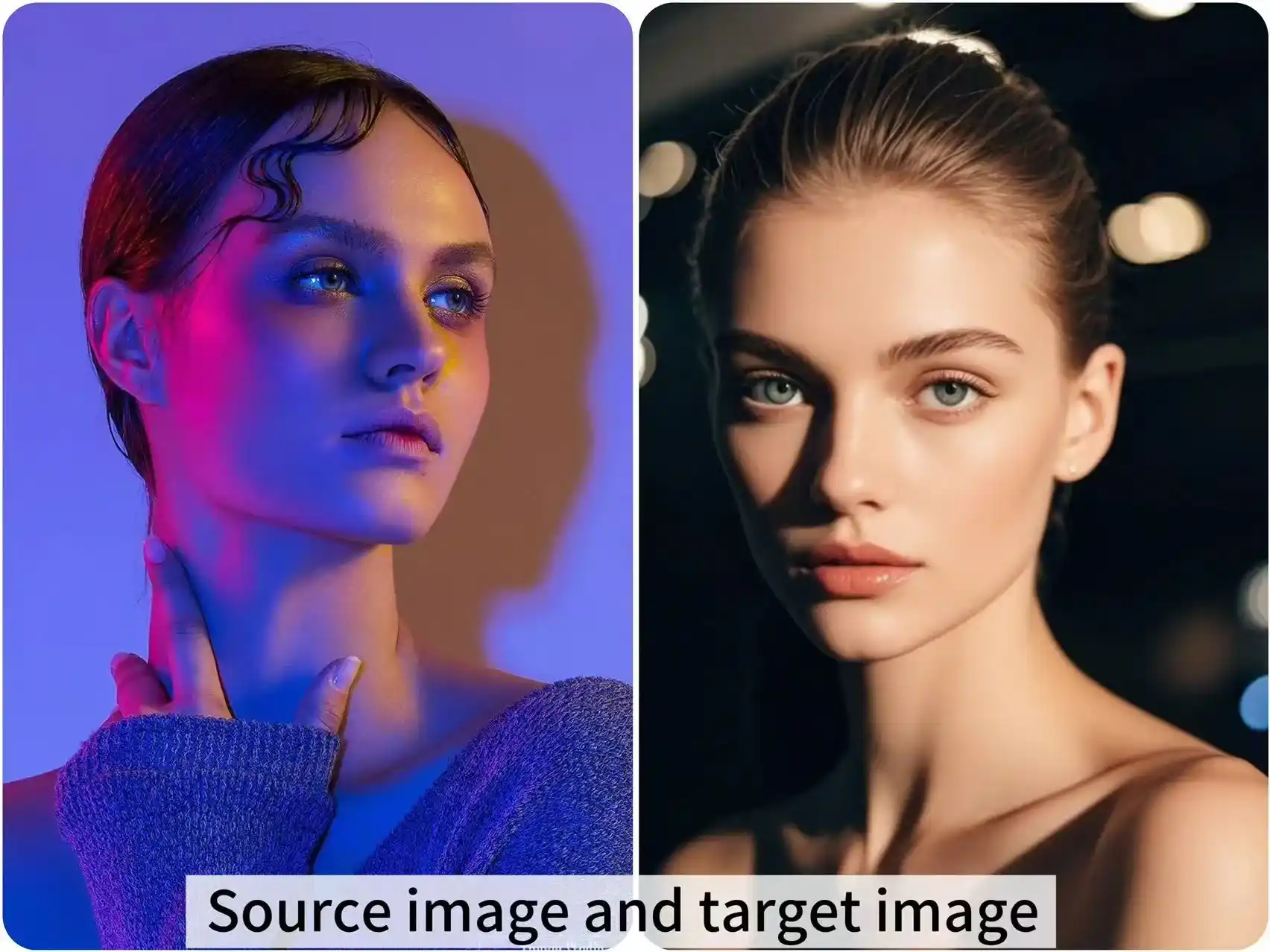
💡Pay attention to the lighting in both face images
Even lighting and consistent light direction can improve the quality of face swapping.
✅Consistent lighting
❌Inconsistent lighting
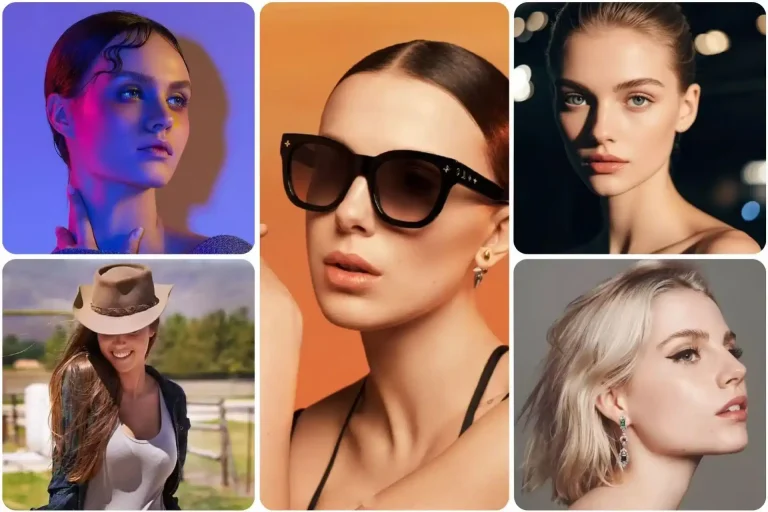
💡Make sure the faces in the images or videos are unobstructed
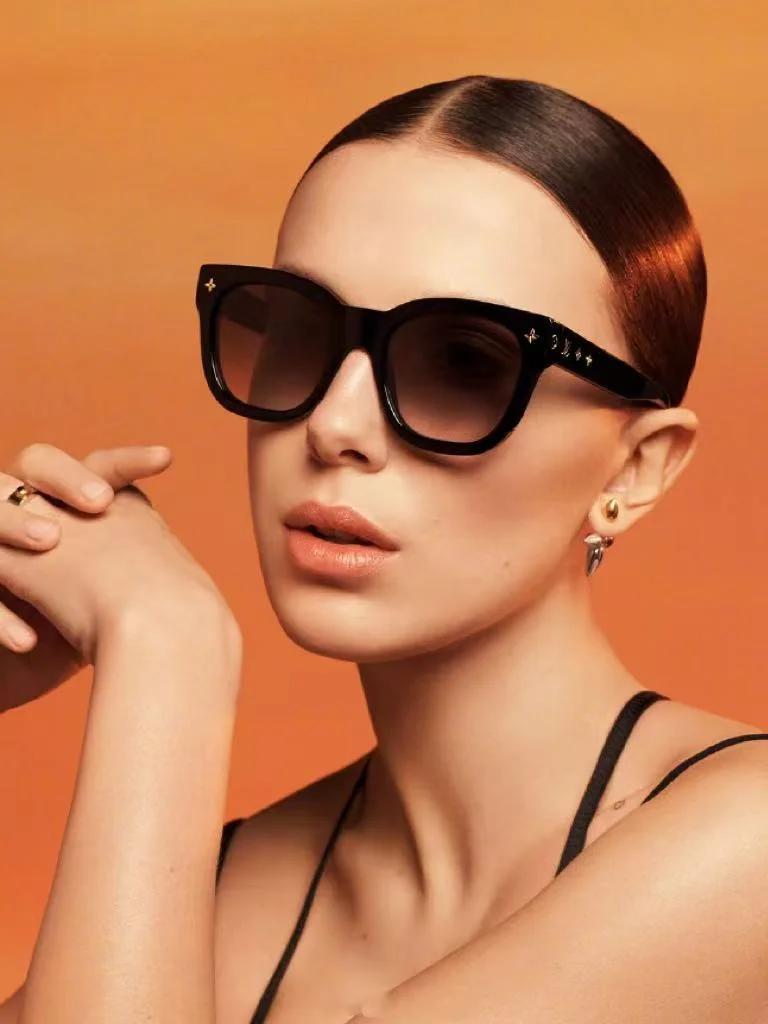
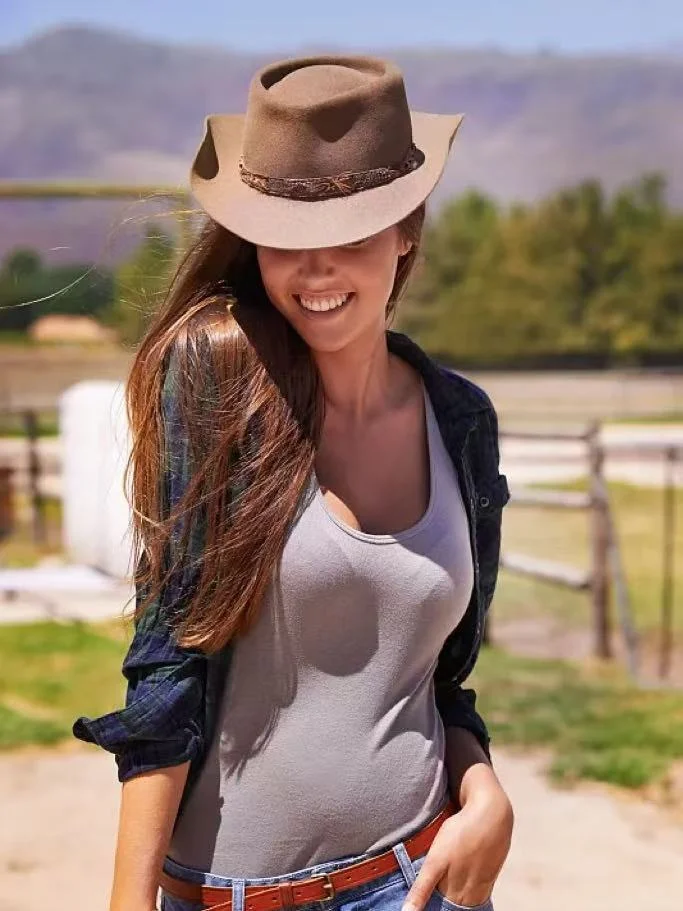
When doing a face swap, having unobstructed faces in your images is crucial for the AI to accurately detect facial features. Therefore, it’s best to avoid sunglasses, hats, or any accessories that might obstruct the face.
❌Obstructed face-1
❌Obstructed face-2
Best AI Tool to Swap Faces Without Losing Quality
Once you’ve prepared photos that meet the criteria, the next step is to select an AI tool that fits your needs for face swapping.
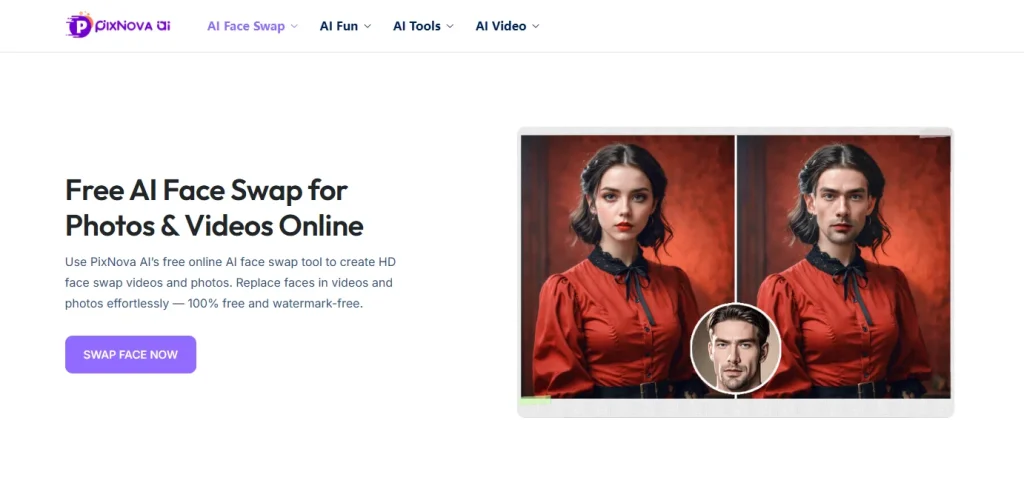
PixNova AI — Best for 100% free AI face swap with no sign-up required.
PixNova AI face swap tool is 100% free and doesn’t require any sign-up. It provides a smooth, hassle-free face swapping experience with natural-looking results.
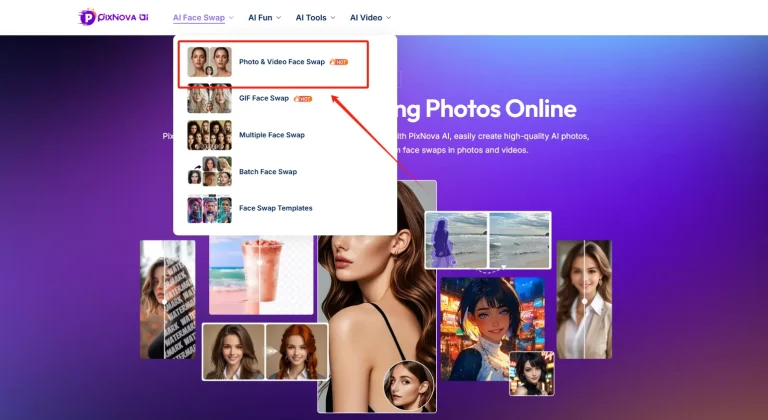
Step by Step to Swap Face in PixNova AI
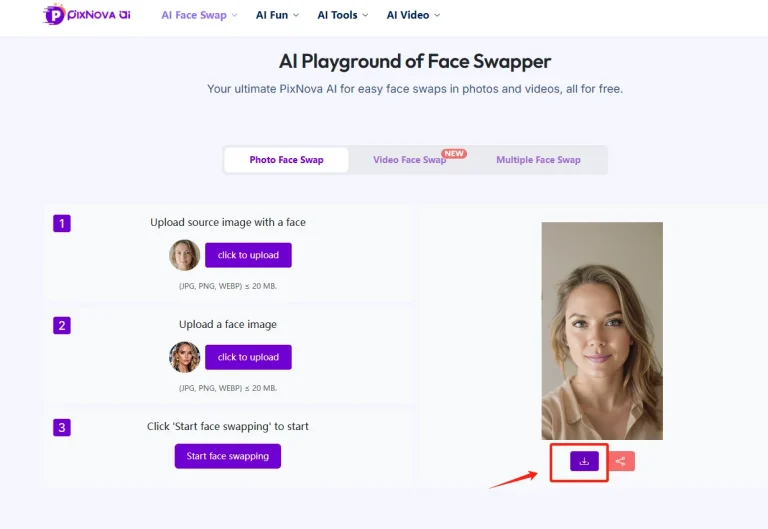
1️⃣Click “Photo & Video face swap” to get started
2️⃣Upload your source image and target face image.
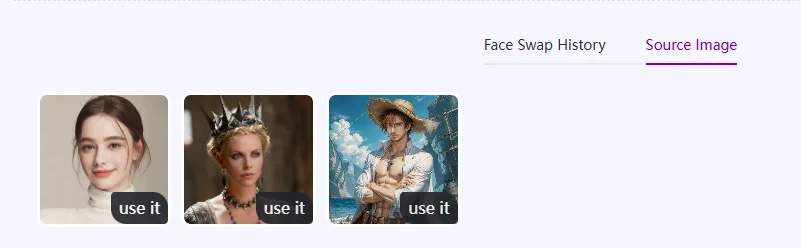
Just make sure both images follow the tips above to achieve the best face swap quality. For a faster experience, you can use PixNova AI’s default ‘Source Image’ templates.
3️⃣Click “Start face swapping”
Your face-swapped image will be ready in just 3-5 seconds. Enjoy and feel free to download or share.
Final Touches to Perfect Your Face Swap
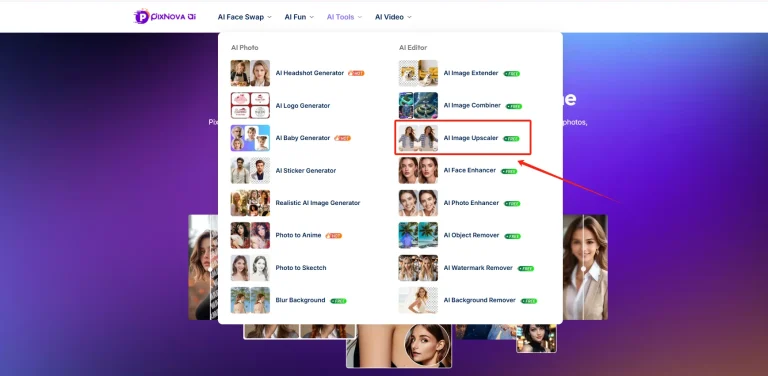
After completing your face swap, if you still feel that the image resolution has dropped slightly, don’t worry, you can use AI image upscaler to enhance the quality.
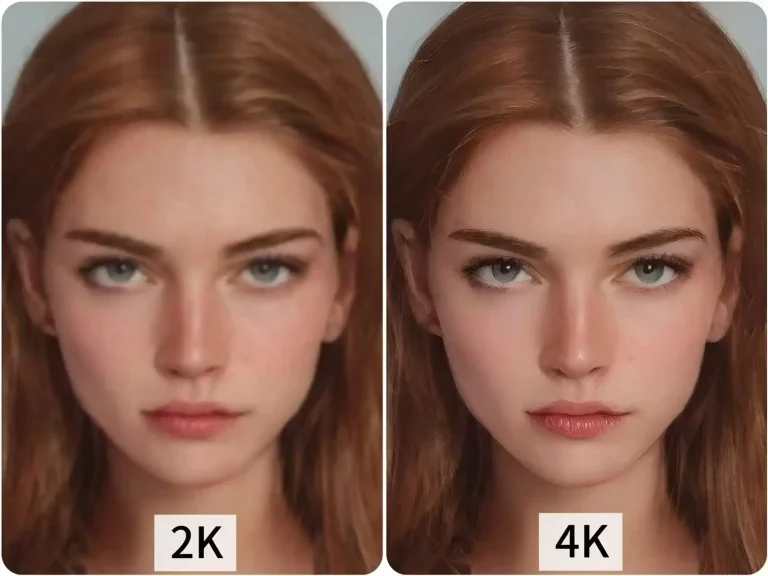
For example, PixNova AI’s AI image upscaler allows you to enhance your image with just one click, effortlessly boosting the resolution from 2K to 4K.
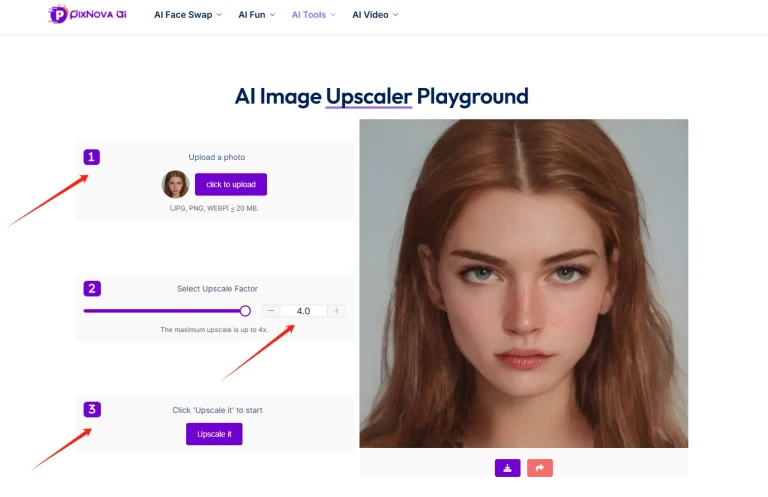
Simply upload your face-swapped photo, select the desired upscale factor, and click the “Upscale it” button. Then just wait a few seconds, the enhanced image will be ready in no time.
🪄You’ll notice that after using the AI image upscaler, the facial details become much sharper, without altering the facial features or the background.
FAQs about High Quality Face Swap
Can video face swap also achieve lossless face swapping?
Yes, it’s possible—but only if the original video is high quality or you enhance it using an AI video enhancer. Otherwise, some degree of quality loss may still occur.
Do I need to use professional software for lossless face swapping?
Not necessarily. There are free and user-friendly online tools like PixNova AI or AIVideoFaceSwap that deliver high-quality results without the need for complex editing skills.
What causes face swap quality loss?
Low-resolution input, mismatched facial angles, poor lighting, or low-quality tools can all lead to blurry or unnatural results.
Will using an AI image upscaler after face swapping alter the facial details?
No. It simply enhances the overall image quality without changing the facial details.